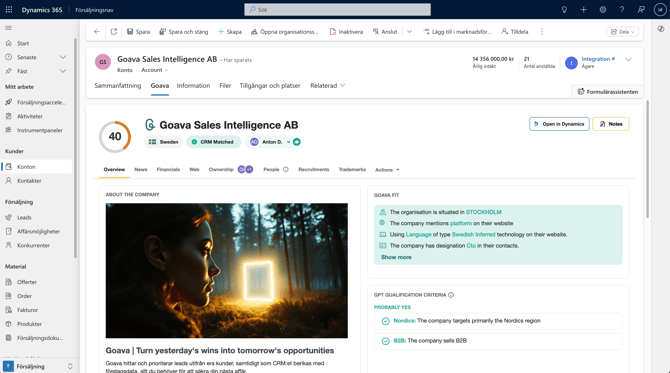
Getting started using the Salesforce integration is easy, but it requires Dynamics admin rights. See more admin tips at the bottom of this page.
Getting started
 Go Go to your settings in Goava, under integration click Configure, and then select Dynamics from the available integrations. This will redirect you to Dynamics, where you will need to grant authorization for Goava Discover.
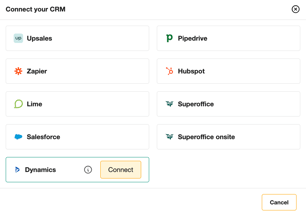
Connecting to Dynamics
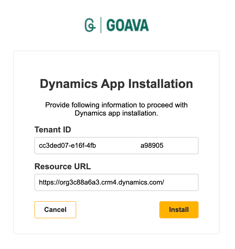
Enter your Dynamics URLand your Tenant ID, then click Install.
Don't know how to find your Tenant ID? Check out this article: Finding your Tenant ID.
After you click on Install, you will be taken to a Dynamics screen to log in and authenticate the app.
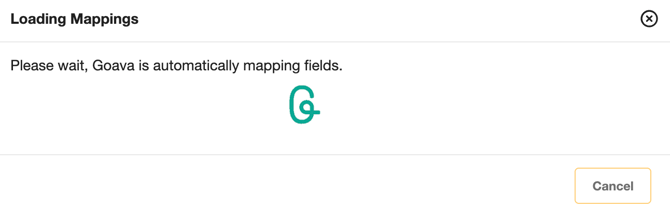
Once connected, Goava will scan your available fields in Dynamics to provide a suggested field mapping. This mapping can be modified in the next step.
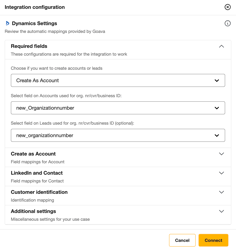
When you get to the field mapping, you only need to map the required fields. But there are many more that you can map to get the full scope of data and optimal workflows.
You can see explanations of all the fields and configurations a bit further down in this article.
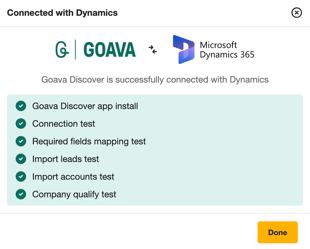
When testing is complete, you will either see an error message with information on what to adjust in your settings or a success message.
Field mappings
We also send data to these Dynamics standard fields:
| Dynamics | Goava |
| Account name/Lead name | Company name |
| Number of employees | Number of employees |
| Annual revenue | Revenue |
| Website | Website |
| Visiting street, zip, town, Country | Visiting address, Country code |
| Description | Description from website |
| Account/lead owner | Goava user |
Sync companies between Dynamics and Goava
Once you have completed the configuration, click the Connect button to finalize your setup. After connecting, you can initiate the import process by clicking the Sync Companies button. This will start transferring all companies from Dynamics to Goava.
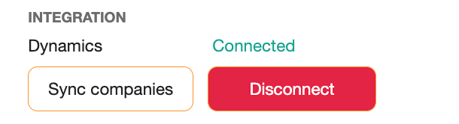
Please note that the duration of this operation may vary and could take several hours, depending on the number of companies present in your Dynamics system.
Qualifying/Exporting companies
When you qualify a company in Goava it will directly create either an account or lead in Dynamics, depending on what you have selected in your settings and enrich the company with data.
Duplicates logic
When exporting from Goava we always check for duplicates based on organization number/CVR/Business ID on top of the duplicate logic you already have defined in Dynamics - so if it already exists we won't create a duplicate.
If you have Should Goava be allowed to re-assign organisations in Dynamics? set as Yes and a company that already exists in the CRM is qualified then we will simply re-assign it to the user that qualified it and update the company data (same field as shown above).
Mapping of companies
When we sync your companies from Dynamics to Goava we map them to lists in Goava based on their status in Dynamics, the mapping looks like this:
-
Leads/Accounts with no opportunities = Qualified
-
Accounts with open opportunity = Converted
-
Accounts, where the latest opportunity is lost = Denied
-
Accounts, where the latest opportunity is won = My Customers (unless you have defined custom mapping for customers)
Export of contacts
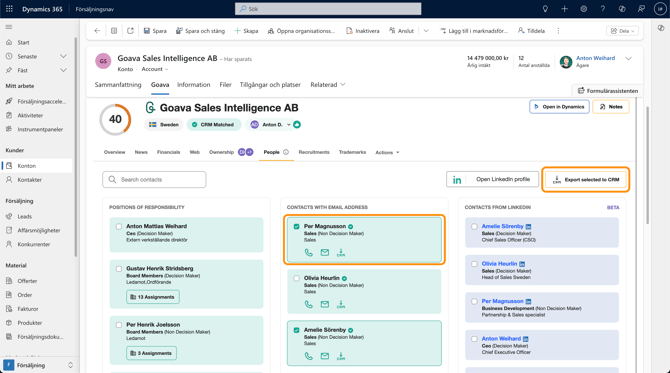
With the Dynamics integration, you can export contacts from Goava without leaving your CRM and creating a new contact associated with the account with one click.
Export of stories
If you find a news story or recruitment posting that you find interesting you can export them as a note on the company by clicking on Export article, and you guessed it - you don't have to leave Dynamics to do this.
Tips for Dynamics Admins
Authentication for our Dynamics app
The user has to authorise the application for the following scope:
- Access Common Data Service as organization users (user_impersonation): This permission allows the application to access the CRM data using the API. Goava Discover app uses this permission to query, create or update the following objects - Account, Lead, Opportunity, Contact and Tasks. So, the user account should have required permissions to access these objects.
Add Discover prospecting to a dashboard in Dynamics
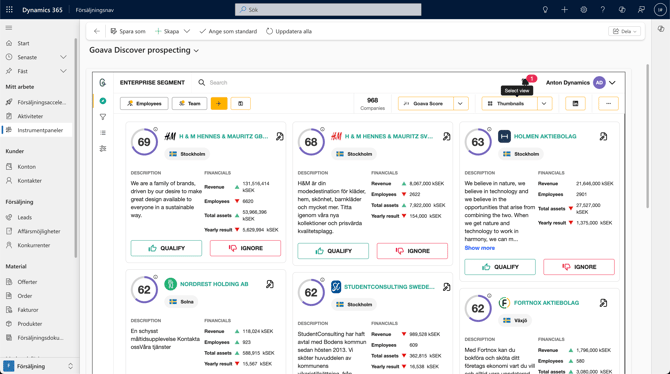
You can do all your prospecting without leaving Dynamics. An easy way of doing this is by creating a new dashboard and placing an iframe that you expand in width and height so that it covers the screen. You can watch a video of how to set it up here: Add Discover prospecting to Dynamics dashboard
Add Goava's company dashboard to accounts in Dynamics
Make sure your sales reps read up on their prospects and customers by empowering them with Goava dashboards in Dynamics. Check out the article Adding Goava company dashboard to accounts in Dynamics