
Getting started using the HubSpot integration is easy, but it requires Super admin rights in HubSpot. See the admin information at the end of this page before setting up the integration.
Getting started
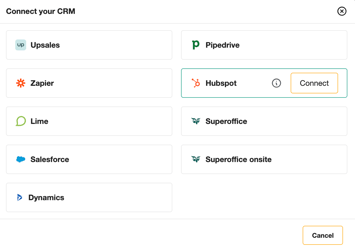
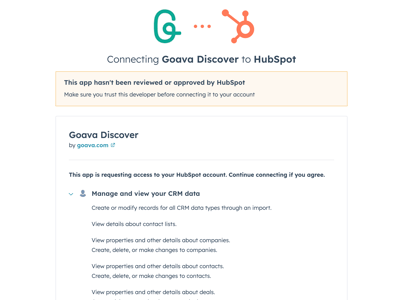
Once you grant the necessary permissions, you will be redirected back to the configuration flow.
Once connected, Goava will scan your available fields in HubSpot to provide a suggested field mapping. This mapping can be modified in the next step.
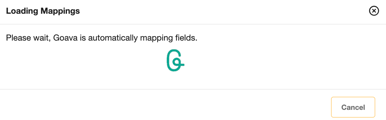
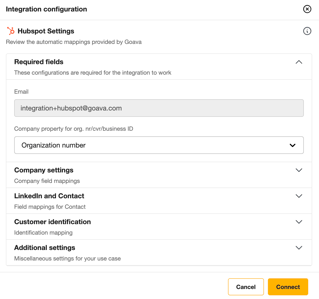
You can see explanations of all the fields and configurations a bit further down in this article.
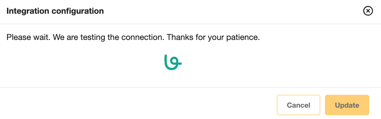
When testing is complete, you will either see an error message with information on what to adjust in your settings or a success message.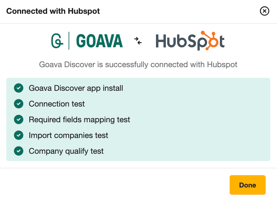
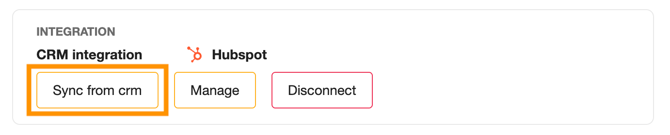
Once you have established the connection, click the "Sync from CRM" button to initiate the company import from HubSpot. Please note that this process may take several minutes to a few hours, depending on the number of companies in your HubSpot account. Rest assured, the import will run seamlessly in the background while you continue with other tasks.
All settings explained
| Setting | Explanation |
|
Company property for org. nr/cvr/business ID. Required |
Map to the field you use to populate org. nr/cvr/business ID in HubSpot. We use this field for reading/identifying companies in HubSpot, and we also write to it when exporting companies. |
|
Company property for lead source. |
Company property for lead source. Needs to be a text or enumeration field. |
|
SNI code and text |
SNI/Nace code and text, for example 70220 Business and other management consultancy activities. |
|
SNI code |
SNI/Nace code, for example 70220. Number or text field. |
|
SNI text |
SNI/Nace text, for example Business and other management consultancy activities. Text field. |
|
Select field for mapping of company situation, such as Bankruptcy, Liquidation etc. |
This some more explanatory information about the situation the company is in. Most common value is empty (). Example of value is Bankruptcy. Text field. |
|
Select field for mapping of company status (Active/Inactive) |
The value here can be either Active or Inactive. Text or enumeration field. |
|
Select field for mapping of segment name |
Field for populating the Goava Segment name that the company was exported from. Use a text field. |
|
Should Goava be allowed to re-assign companies in HubSpot? |
Yes/No. If you select yes, then Goava will be able to export any company and if the company already exists in HubSpot we'll be able to re-assign it to the user that qualified it in Goava. If you select no, then Goava won't be able to re-assign any existing companies, so if you export a company that already exists with an owner, we will just skip that export and do nothing. |
|
Do you want to create a task when a company is exported? (optional) |
Yes/No. If you select yes, then we will create a task for you associated with the object you exported to contact the company. |
|
Select field for mapping of contact's LinkedIn profile URL. (optional): |
If you export LinkedIn contacts you can map the contact's LinkedIn profile URL to a field on the contacts object. |
Company mapping
We will map your companies from HubSpot into lists in Goava. We'll map the companies according to the Company owner in HubSpot and the Lifecycle stage. You can also provide custom Lifecycle stage mapping in your settings if you want to use other Lifecycle stages.
If you do not provide your own mapping, the mapping below will be used.
|
Lifecycle stage in HubSpot |
List in Goava |
|
Marketing Qualified Lead, Sales Qualified lead, Lead, (Also companies that have no lifecycle stage) |
Qualified |
|
Opportunity |
Converted |
|
Customer |
Customer |
|
The latest deal on the company was lost |
Lost |
Qualifying a company in Goava
When you Qualify companies in Goava now, they will automatically be created in HubSpot and you'll be assigned to that company. If the company already exists and doesn't have an owner in HubSpot that company will be updated and you'll be assigned. The Company data you'll get automatically in when exporting from Goava is:
-
Company owner
-
Company name
-
Organization number/CVR/Business ID
-
Postal and visiting address
-
Website
-
Website description
-
Phone
-
No of employees
-
Revenue
Export of contacts
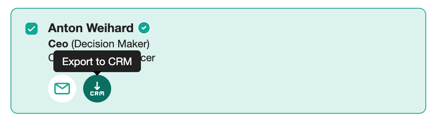
With the HubSpot integration, you can export contacts from Goava without leaving your CRM and create a new contact associated with the company with one click.
Export of stories
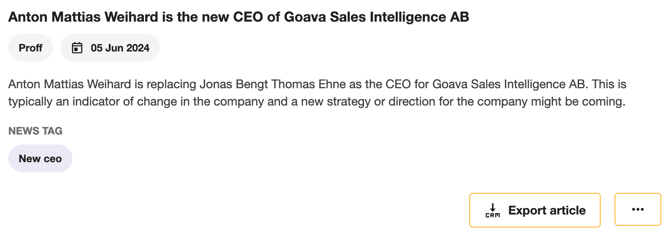
If you find a news story or recruitment posting that you find interesting you can export them as a note on the company by clicking on Export article, and you guessed it - you don't have to leave HubSpot to do this.
Goava CRM card in HubSpot
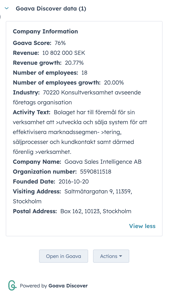
In the CRM card, we show up-to-date information including Goava Score about the company and it's available on company, contact, and deal view in HubSpot.
It also has options like Open in Goava that opens up the company dashboard in a modal so you can research the company without leaving HubSpot.
From Actions, you can also;
-
Update with Goava Discover data, this will update your HubSpot company data with reliable company data from the Goava database.
-
Discover new leads, will open up Discover prospecting in a modal so you can find new prospects without leaving HubSpot.
Update with Goava Discover data, this will update your HubSpot company data with reliable company data from the Goava database.
Discover new leads, will open up Discover prospecting in a modal so you can find new prospects without leaving HubSpot.