
1. Activate your account
Check your inbox for an activation email from Goava. Click the activation link inside to set your password and activate your account.
Can't find the email? Check your spam folder, or reach out to your account admin if you still need help.
2. Log in
Head to discover.goava.com and log in with your email and the password you just set, or use your Google/Microsoft account.
3. Take the navigation tour
Once you're logged in, look for the "Get started in Goava" button at the bottom center of your screen. Click it to start a quick tour of the platform's navigation and key concepts. Follow the guide all the way through; it's the fastest way to find your way around.

4. Search for a company
Use the search bar at the top of the screen to look up any company you're curious about. Click the company name in the results to open it.
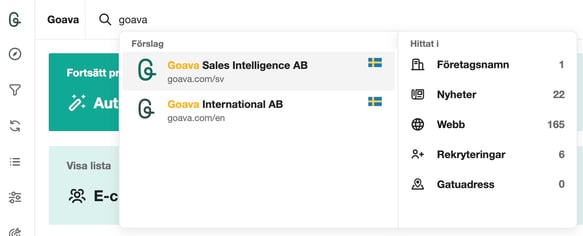
5. Explore the company dashboard
The company dashboard is where the real insights live: financials, signals, contacts, news, and more. To learn what each section does, click "TOUR: Company dashboard" for a guided walkthrough.
Make sure to test the Research agent by clicking the Research button at the top right.
Write "@goava who should I talk to at this company and what should I talk about?".

6. Set up automatic prospecting
Now for the fun part. Set up your agents on the settings page so Goava can start working in the background for you:
- Prospecting Agent — finds new companies that match your ideal customer profile and surfaces them automatically.
- Research Agent — digs into companies you care about and pulls out the insights you need before a meeting or outreach.
Configure each agent based on your segment, ideal customer profile, and what you want to know.
Click here to start a guided setup of the agents.
7. Watch the magic ✨
That's it — you're set. Sit back and let your agents do the heavy lifting. You'll start seeing relevant companies, contacts, and research land directly in your workflow.
Need help? Write to the product agent at the bottom center of your screen. It understands any language and can show you how to achieve what you want.
Key concepts
Goava Score
The Goava Score is a relevance score assigned to every company in a segment based on how well it matches your Ideal Customer Profile. It’s calculated by analyzing multiple dimensions — industry, revenue, employee count, geography, company type, and technographics — weighted by how strongly each factor correlates with your best customers.
Higher scores mean a better match to your ICP. The score updates dynamically as your ICP is refined or company data changes.
Ideal Customer Profile (ICP)
An ICP is your Ideal Customer Profile — a description of the companies that are the best fit for your offering. In Goava, ICPs are used to rank and prioritize companies with Goava Score, so you can focus on the segments most likely to match your best customers. Goava’s ICP Agent has already analyzed your website and current customers and created several ICPs for you.
You can create multiple ICPs for different market segments (e.g., enterprise vs. SMB, or different industries). You can create ICPs based on lists in Goava or your CRM, or create your own with AI and simply descibe your ICP. Create segments from ICPs with a single click.
Segments
Segments are filtered, scored views of Goava’s database of millions of Nordic companies. Each segment applies an ICP to rank companies, and you can add filters for revenue, employees, location, and more.
Think of segments as smart prospect lists that are always up to date — as new companies match your criteria, they appear in your segment.
Qualify and Ignore
Qualify and Ignore are the two prospecting actions you perform on prospects in Dashboard view. Qualify marks a company as a good fit and sends it to the Qualified list as well as exports to your CRM if you have it connected.
While Ignore marks it as not a fit. This keeps your segments view focused on untriaged companies.
Pipeline
Goava’s pipeline lists mirror where companies are in your sales process and keep that status aligned with your connected CRM.
The main idea is that Goava helps you work from prospect to customer while syncing CRM status back into Goava so your lists stay relevant for prospecting.
How the pipeline lists work
- Qualified: companies that are ready for outreach or have been qualified in Goava.
- Converted: companies that have moved further in the process, typically into an active sales pipeline or deal stage in the CRM.
- Customers: companies that are marked as customers in the CRM.
- Lost or Denied: companies that are no longer active opportunities, depending on the CRM and integration mapping.
When your CRM integration is set up, Goava syncs company status between the systems. That means Goava uses CRM data to place companies in the right pipeline list.
Lists
Lists are manually curated collections of companies. Unlike segments, lists are static — companies don’t appear or disappear automatically. You control what goes in and what comes out.
Lists are used for:
- Importing lists from external systems via .csv files
-
Providing source data for ICPs
-
Creating custom static lists
Prospecting Agent
The Prospecting Agent is an AI assistant that autonomously discovers and evaluates prospects. It runs on a schedule (e.g., daily), analyzes companies in your chosen segment using your ICP, and routes qualified prospects to a designated list while filing rejected ones elsewhere.
Read more here
Research Agent
The Research Agent is an AI assistant that does deep-dive research on companies you care about. Point it at a list of companies and it gathers the insights you need — recent news, signals, key initiatives, decision-makers, and other context — so you walk into every conversation prepared.
Use it to enrich an account list before outreach, prep for meetings, or stay on top of strategic accounts without manual research.
Read more here.
AI Credits
AI Credits are a usage-based currency that powers Goava’s AI features — the Prospecting Agent, Research Agent, and AI-generated company analysis. Credits are consumed when the AI analyzes a company, regardless of whether that company qualifies.
Your remaining credits are shown in Settings > Prospecting Agent. Each agent can be configured with a maximum credit spend per prospect.
Read more here.